

NOTE: This approach was not communicated directly by Microsoft hence, we need to approach Microsoft for the implications before replicating the same on production environment.
We are familiar that whenever new financial dimension is created in D365, a pop up appears stating that “The activation of dimensions is only allowed when the system is in the maintenance mode”. Therefore, we need to enable the maintenance mode and activate newly created financial dimension before it can be used in any of the financial transactions.
Today, we will be exploring a short cut to avoid the activity of maintenance mode so that we can activate the financial dimension from the front end.
First of all, navigate to the General Ledger > Chart of accounts > Dimensions > Financial dimensions and click on new to create your required financial dimension (In our case its BRAND). A pop up will appear asking you to enable the maintenance mode to activate this financial dimension.
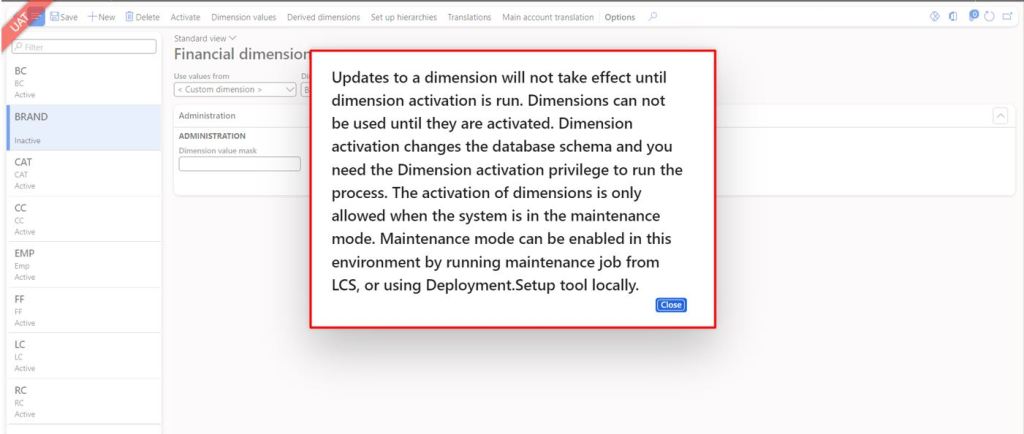
When you will click on close button, you will notice that the status of this financial dimension is Inactive.
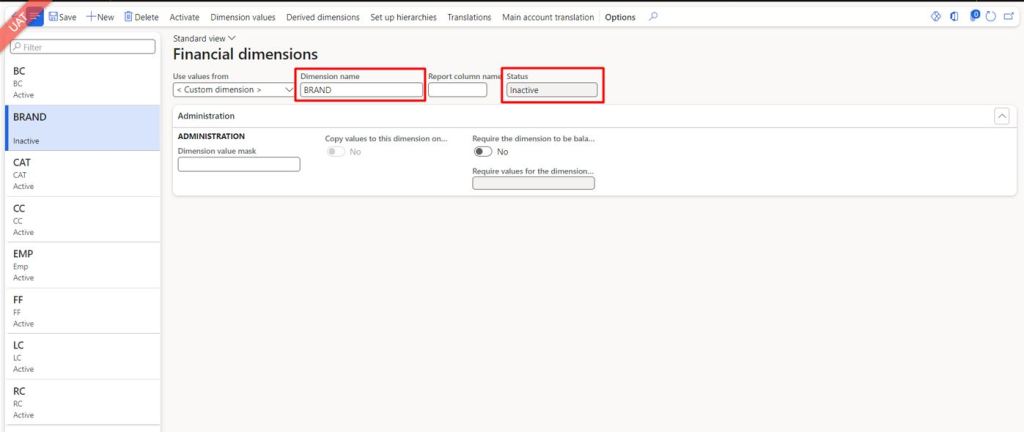
No need to worry, just follow the below mentioned steps and you will be at much ease.
Navigate to System administration > Workspaces > Data management
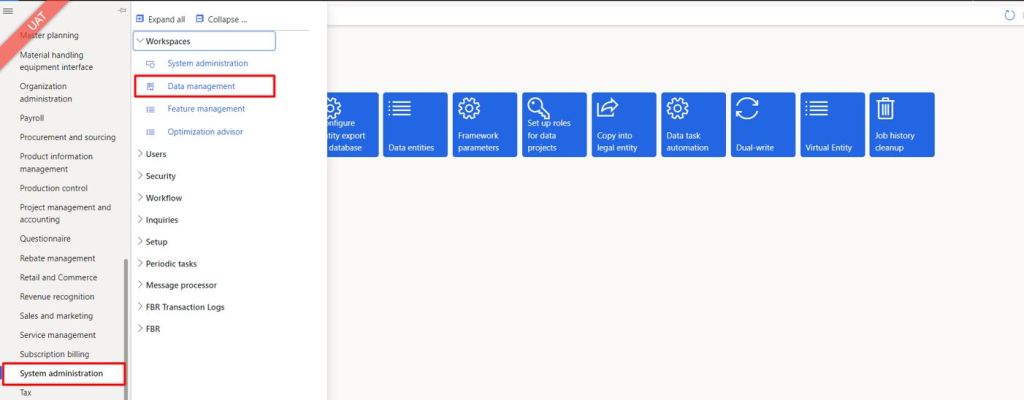
Create an Export project
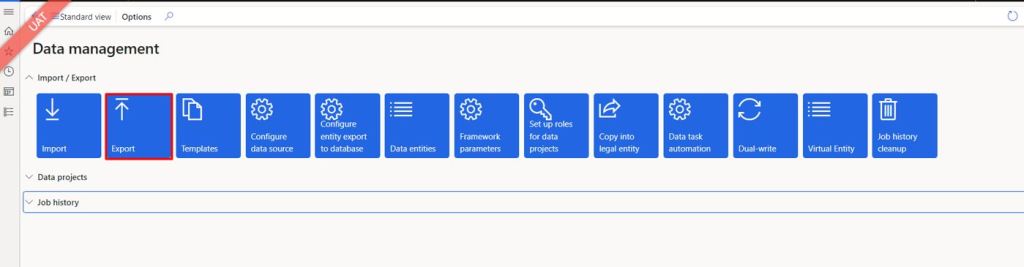
Add the entity “Dimension attribute activation”, export and download the file.
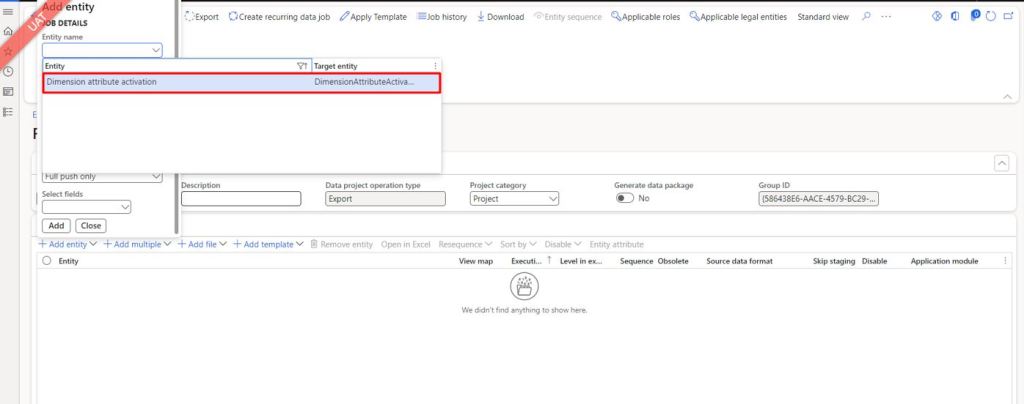
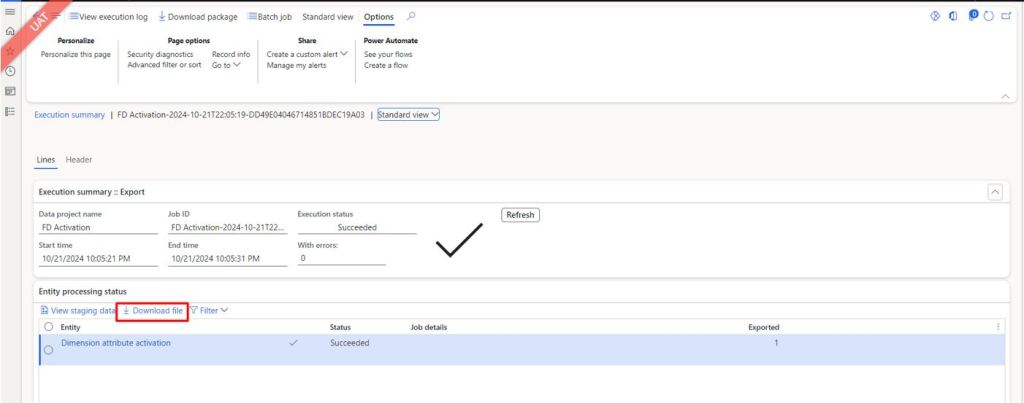
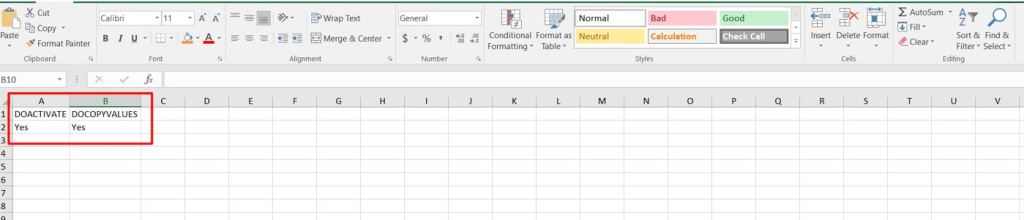
The downloaded file will look like this
Then create an import project this time, select the same entity “Dimension attribute activation”.
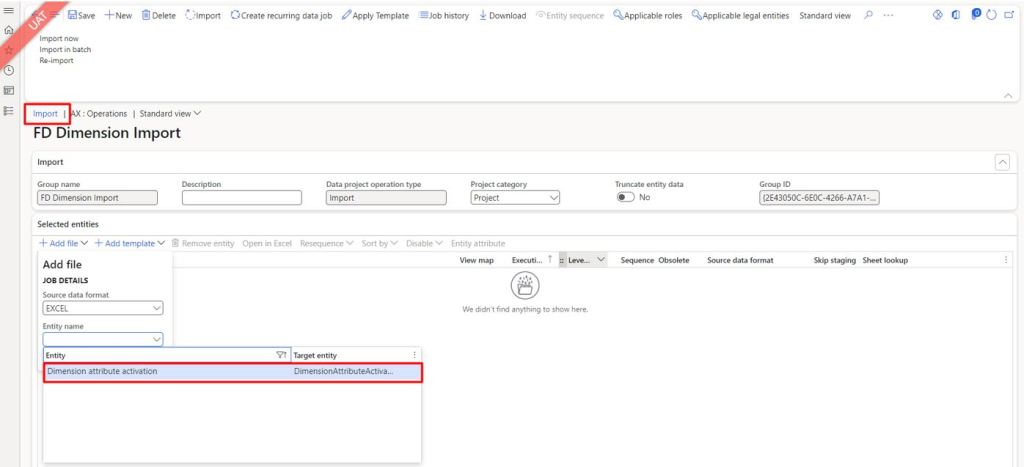
Upload the same excel file that you download earlier and import in D365
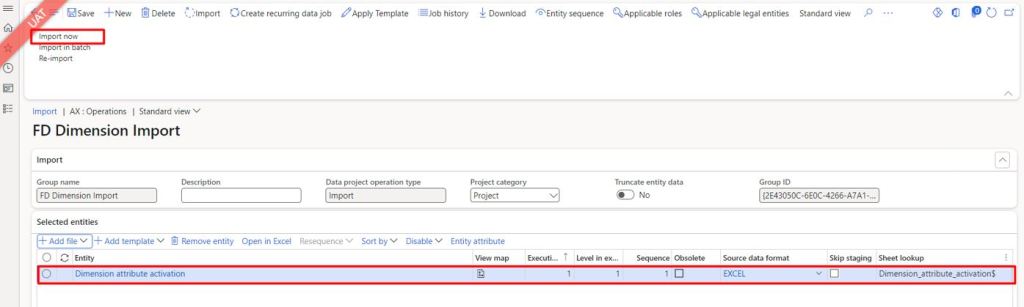
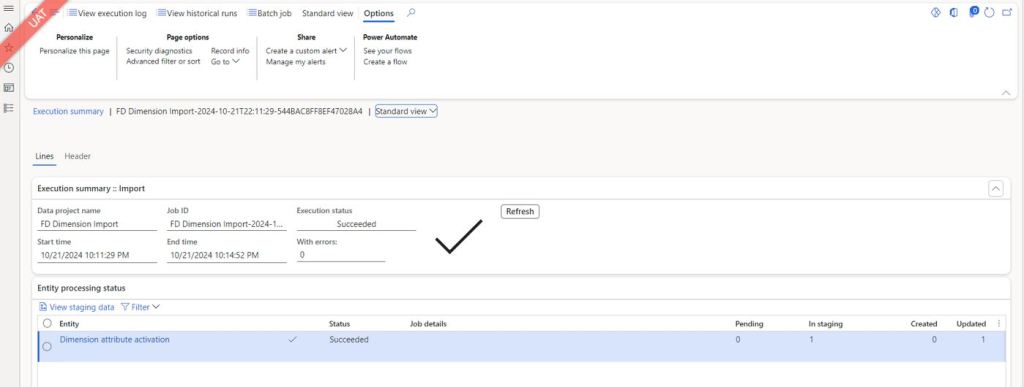
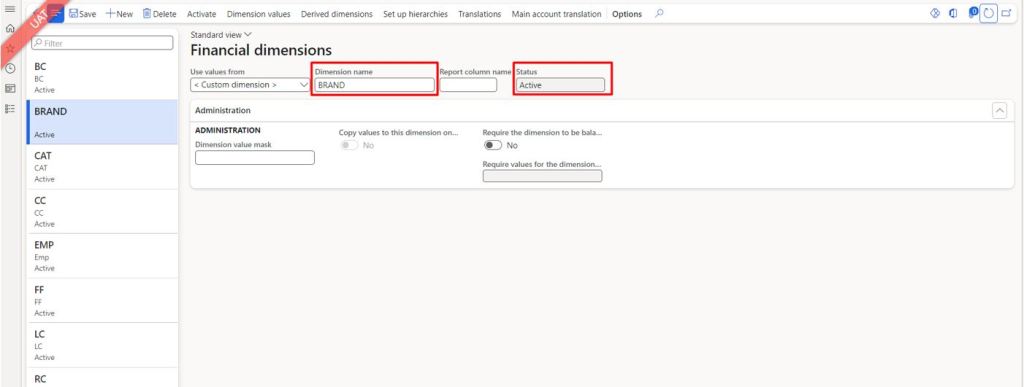
Once, the file is successfully uploaded, you will notice that all the inactive financial dimensions will be activated.
Thanks for your precious time!
Contributor: Abdul Basit


Leave a Reply