

So in Part 1 of Advance bank reconciliation I discussed about the basic setup and configurations. In this part I’ll be writing about clearing the reversal transaction which exist in either our bank statement or D365 bank transaction
This blog will cover following to Action of Advance Bank reconciliation
- Clear reversal statement line
- Clear reversal bank transaction
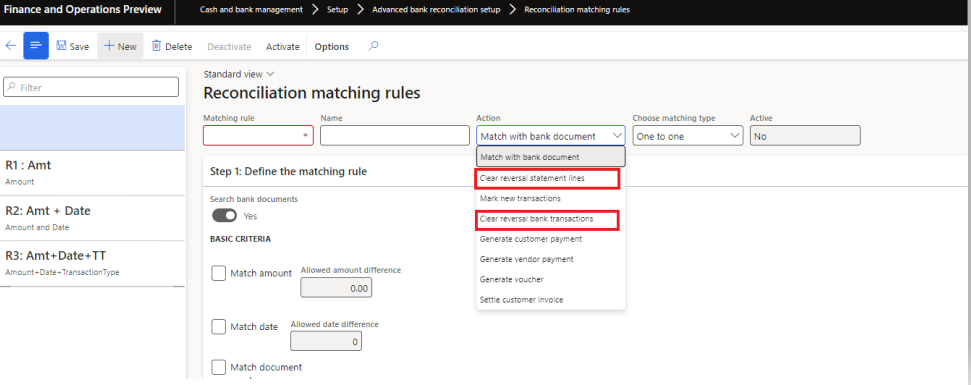
These two feature can be selected under Action dropdown of Reconciliation matching rule
Clear reversal statement line
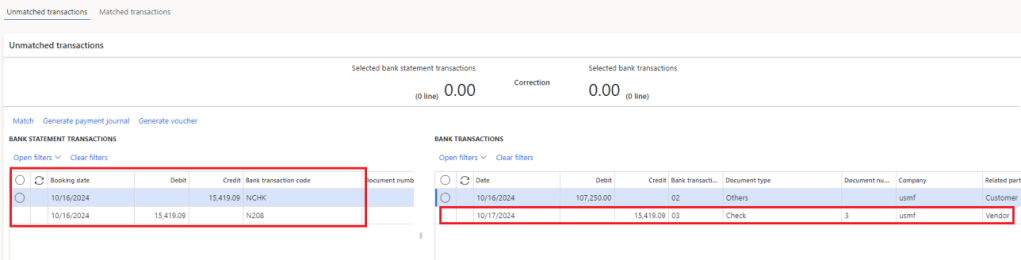
There can be a scenario where there is a reversal transaction in bank statement which is not recorded in D365 transaction. Now, when user import the bank statement file they will find 1 transaction in D365 grid and two transactions in Bank statement grid the total of which will be zero.
User can manually mark both the transactions in bank statement and match it but, we can also automate this by using matching rule.
I’ll create a Matching rule
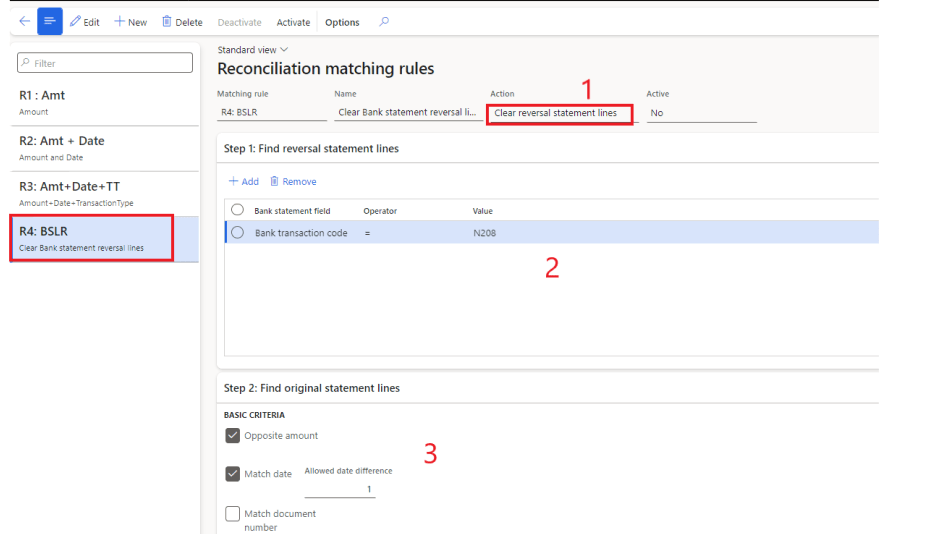
- in action, select clear reversal statement lines
- under Find statement reversal lines, we can configure D365 to identify which line is reversal line. Normally MT940 have RD or RC identification instead of D (Debit) or C (Credit) identification in the file. So, when you import a file having RD or RC, the reversal check box in the statement line will be auto marked as Yes
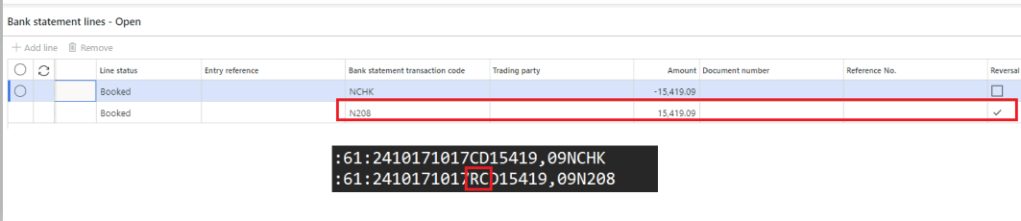
or we can also Give the identification of a transaction code. In my scenerio N208 transaction code represent the reversal by bank
3. Now we need to tell system how to find the original line of the reversed transaction in bank statement. First it needs to be in opposite amount. we can also give direction if date of original and reverse transaction is matching or it can have some days gap.
Once our rule is created, mark it as activated. we can include this rule in Reconciliation matching rule set.
Now I’m going to import this bank statement
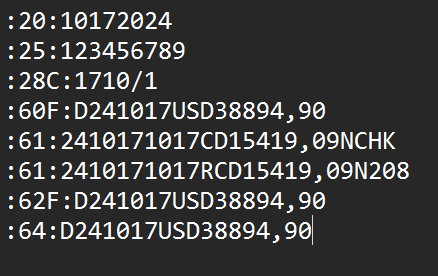
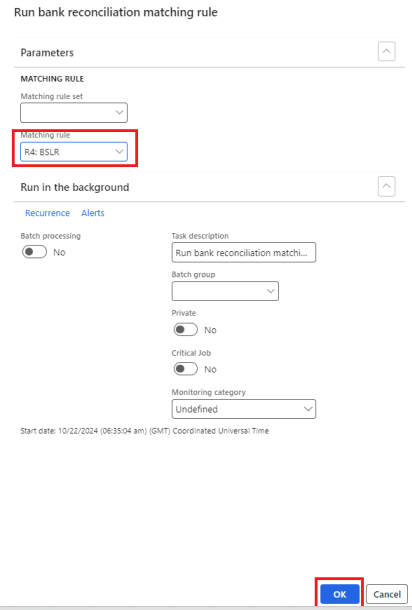
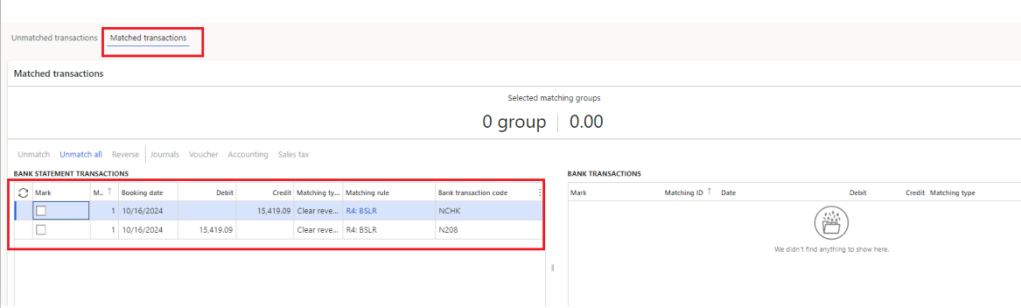
In my bank statement file, I’ve one original check line and one reversal line and in my D365 transaction I’ve one vendor payment line. When I run my clear reversal stament line rule, it will reconciled and match the bank statement line with each other instead of matching it with D365 transaction
Clear reversal Bank Transaction
This is a new feature. As of Microsoft Dynamics 365 Finance version 10.0.39, the Modern bank reconciliation feature provides this functionality.
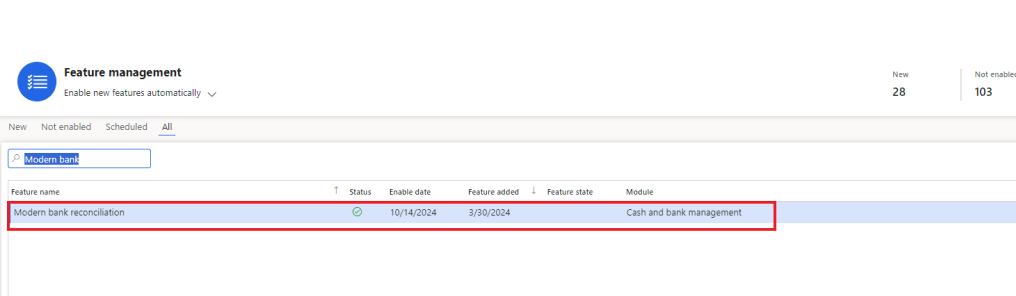
To enable this feature you’ll need to enable the Modern bank reconciliation from feature management
We can use this feature in case where we might have payment journals that are reversed in the system, but that don’t have any records at the bank. This feature lets users clear reversal company transactions in advanced bank reconciliation without matching them to bank statement transactions.
For cheque reversal, we may not need this feature as at the time of reversing check we can mark that reversal as reconciled. But for electronic method of payment we don’t have such feature yet so, we usually create the vendor payment journal and create the reversal line manually.
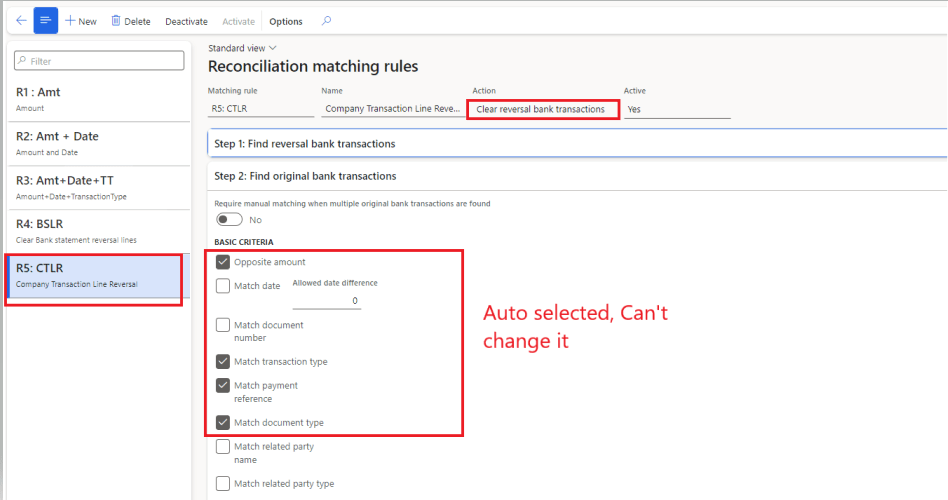
In Action we will select clear reversal bank transaction. In Find reversal bank transaction we can setup a criteria. In find original bank transactions fast tab the check box are already filled and we cannot change it.
It means that when we are creating a reversal we need to make sure the payment reference, transaction type and document type should be same
Once created Activate it
So I’ve one transaction which I reversed using payment journal
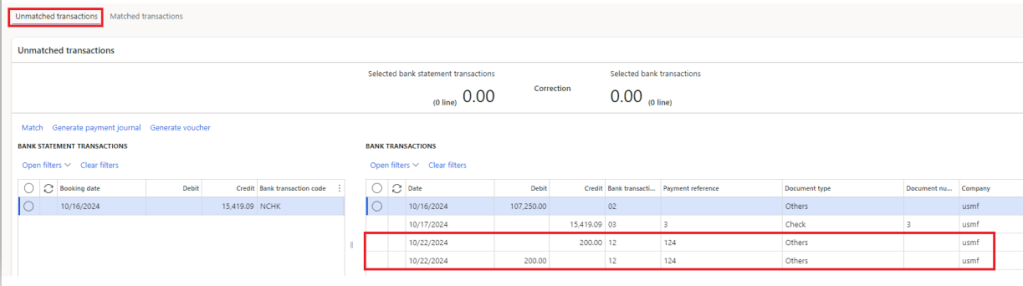
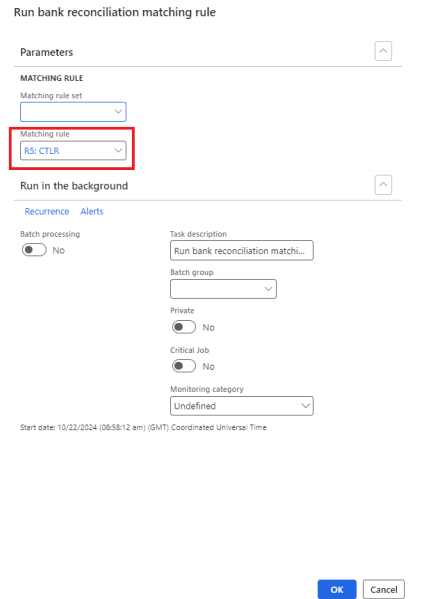
Now, Run the clear reversal bank transaction rule
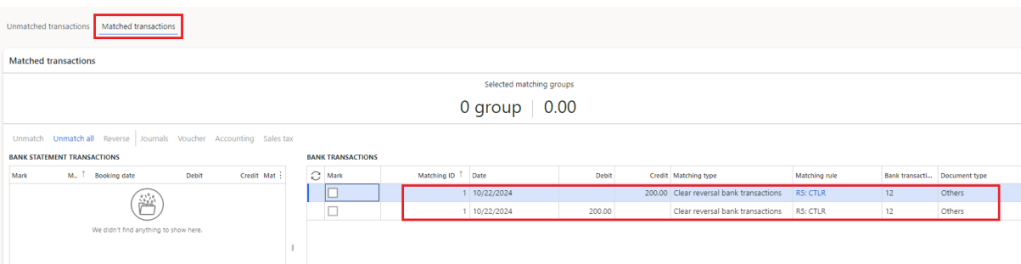
when the rule gets executed, both original and reversal line gets matched
Thanks!!
 IntelliDax
Leave a comment